How to Manage App Permissions?
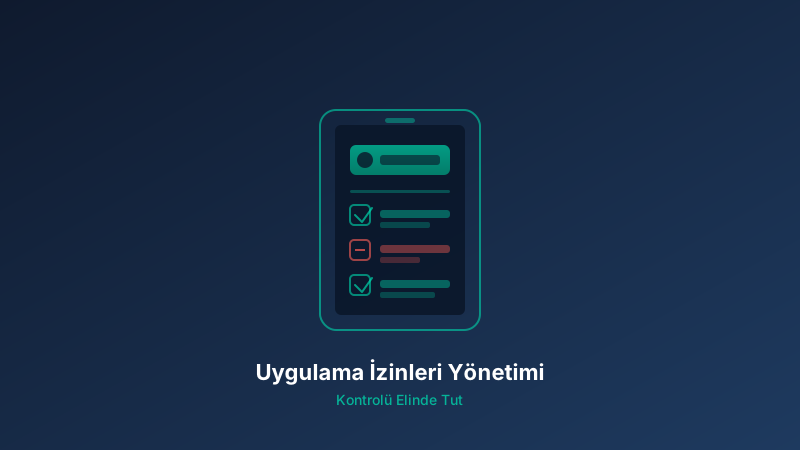
App permissions determine which features or data of your device an app can access. Unnecessary permissions, like a flashlight app requesting location access, carry privacy risks. This guide explains practical ways to manage permissions correctly.
Permission types: location (precise/approximate), camera, microphone, contacts, call logs, SMS, storage, phone state, and background data. Each permission type carries a different privacy risk. For example, location permission allows building a movement profile; microphone permission can lead to your conversations being listened to.
Principle of Least Privilege: give an app only the minimum permissions it needs to function. If an app requests location access, choose 'Only while using the app'. Avoid the 'Always' option — this allows the app to track your location in the background.
Permission management on Android: go to 'Settings > Privacy > Permission manager'. Select each permission individually and review which apps have that permission. If you find a suspicious app, revoke the permission from the 'Allow' menu. Android 12+ offers the 'Remove permissions' feature to revoke permissions at once.
Permission management on iPhone: go to 'Settings > Privacy & Security'. Select each permission category and review the apps. iOS classifies permissions as 'Never', 'Once', 'While Using the App', and 'Always'. The 'Once' option is ideal for temporary access.
When you install a new app, evaluate permission requests carefully. Be suspicious if an app requests all permissions immediately upon installation. Use the app first and grant permissions only when truly needed. For example, a camera app may request location access on first launch — this is for adding location tags to photos and can be denied.
Regular audit: review all permissions once a month. Revoke permissions from apps you don't use. QMOBILE Pixel-based devices, with their BASEL-based privacy approach, make permission auditing easy: access logs transparently show which app accessed which permission and when.
Advanced tips: turn off microphone and camera permissions for social media apps (enable only when needed). Limit browser permissions (location, camera, microphone). Use Family Link apps for children and adjust permissions by age. These steps significantly increase both your privacy and security.